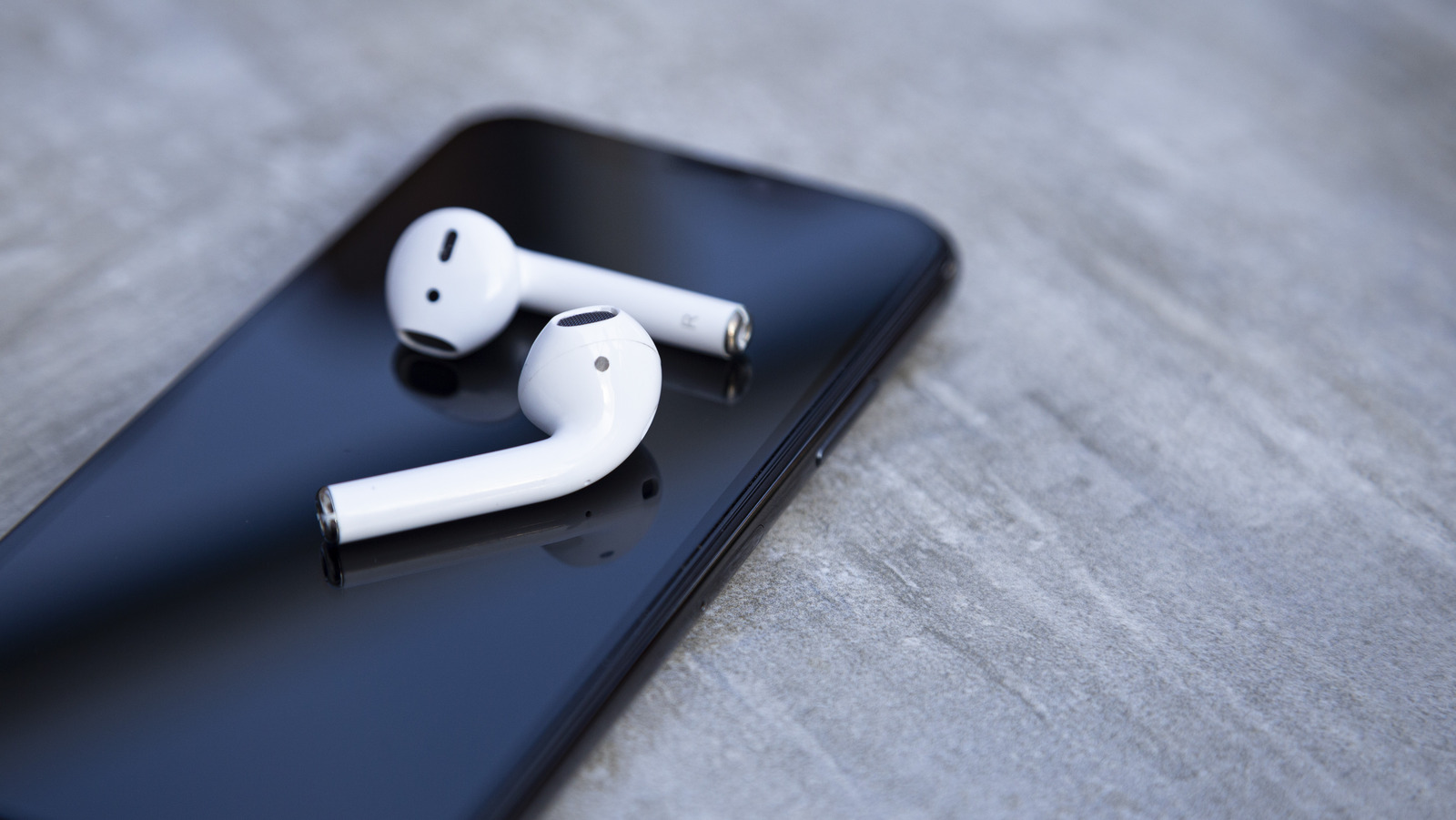
Every time you use the AirPods paired with your Apple device, they automatically get connected via Bluetooth. This convenient feature allows you to immediately start listening to the songs, videos, or any other media currently playing on your iPhone. However, there are instances when you might not want your AirPods connected to your device — perhaps you prefer to use your phone speakers this time around or you need to resolve some technical glitches like quiet AirPods or low volume before using them.
****
Whatever the case may be, there are some easy ways you can disconnect your AirPods from your Bluetooth. Do note that this doesn’t delete them completely from your device, and they remain under your Apple ID account, meaning they’re still technically yours.
Here are three ways to disconnect your AirPods:
Disconnect them via the Bluetooth shortcut: Open the Control Center on your iPhone by pulling down from the upper-right corner of the screen. Long-press on the Bluetooth shortcut to expand the connectivity section. Tap and hold the Bluetooth icon to reveal a list of your Bluetooth devices. Tap once on your AirPods. Disconnect the AirPods from the Settings: Launch the Settings app. Select AirPods at the top. Scroll down to and select the Disconnect option. Turn off your iOS device’s Bluetooth: Go to the Control Center by pulling down from the upper-right corner of the screen. Tap on the Bluetooth icon in the connectivity section to turn it off.
After doing any of these methods, the sounds coming from your AirPods should automatically be cut off. You’ll also hear a short chime from your AirPods, indicating they’re disconnected. To reconnect them to your Bluetooth, open your AirPod case or take out the earbuds, open the list of Bluetooth devices in the Control Center as described in number 1 above, and tap on your AirPods from the list of devices. You should see the label change from Not Connected to Connected.
****