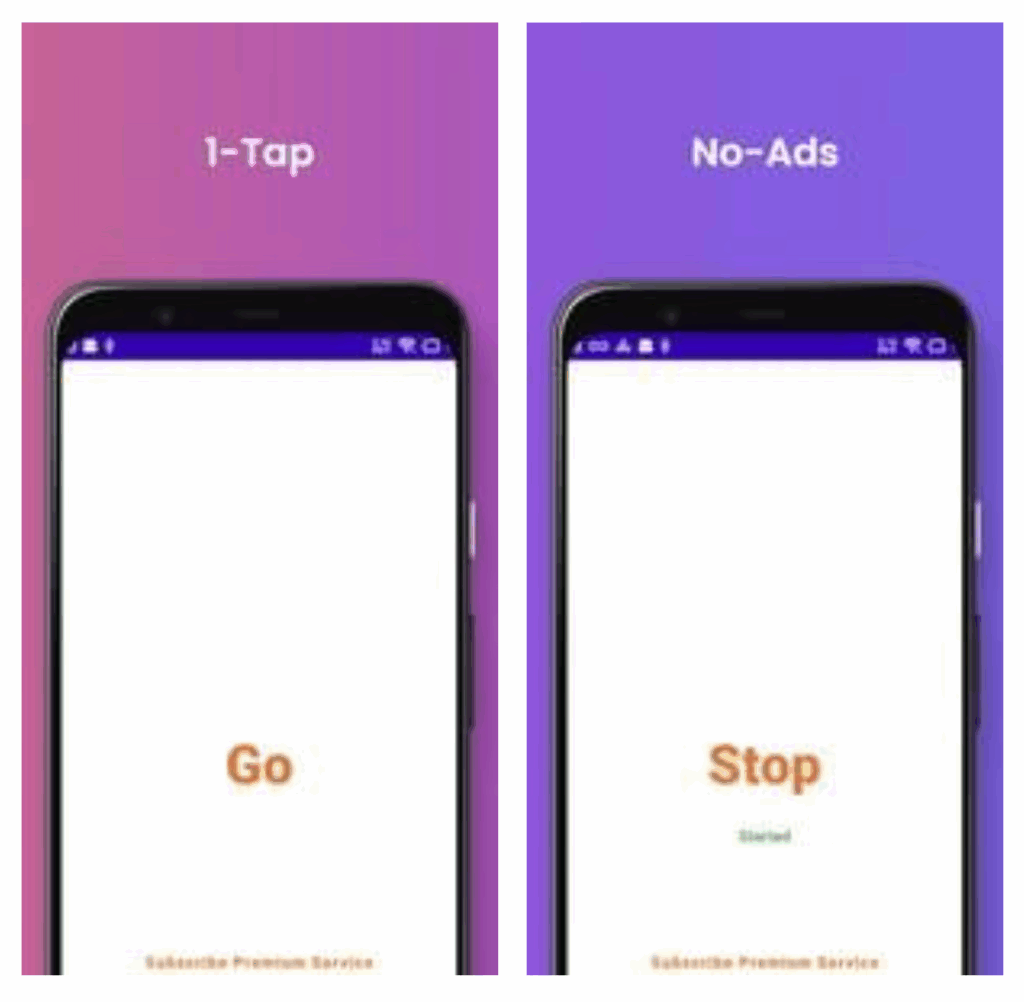
Leaf VPN is one of those apps that fits its own description almost too well. The store listing calls it “Easy 1-Tap VPN,” and that is close to the entire interface. You open it, you press the button, the Android VPN permission dialog appears, and a few seconds later you have a tunnel.
That simplicity is the whole point on a phone. On a Windows machine, running through an Android emulator, the same simplicity turns into something slightly different: a tool that protects what happens inside the emulator window, not your whole PC. That distinction matters before you install anything, since it determines who this setup helps and who it doesn’t.
The interface is a button and not much else
Launch Leaf VPN and you get a mostly empty screen with a large connect control in the middle and a server selector somewhere nearby. There are no protocol toggles, no kill switch panel, no split tunneling menu, no DNS field. If you have used a configuration-heavy client before, the first reaction is usually to look for a settings tab that does not exist.
The connection flow is short. Tap once, confirm the system VPN permission prompt (Android requires this because the app uses VpnService to build the tunnel), and the status flips to connected. On a desktop, that permission dialog shows up inside the emulator as a normal Android system dialog, and you click it with the mouse like any other button.
Server switching works the same way: pick one from the list, and the app reconnects. There is no ping column to agonize over and no per-server load meter. You choose, it connects, you move on.
What the free tier feels like
The free service is advertised as unlimited, and it behaves like a free tier normally does. Connections are quick to establish, and the app does not nag you constantly, but you are sharing capacity with everyone else on the free side, so speeds vary by server and by time of day.
The listing also mentions a three day trial for all users that converts into a paid subscription when it ends, with weekly and monthly plans at low price points. That auto-conversion is the one detail people miss on mobile and miss even harder on a desktop, where the emulator sits in a background window and you forget it exists. If you start the trial, make a note of the date and manage it through Google Play like any other Android subscription.
Running Leaf VPN on a Windows PC through an emulator
Leaf VPN has no native Windows client, so the desktop route is an Android emulator. BlueStacks is the usual choice, and Leaf VPN installs on it the same as any other Tools app.
Two things matter more than everything else in that setup, and neither of them is on the standard emulator checklist.
First, the VPN permission. Android requires explicit user consent before any app can create a tunnel, and some emulator builds handle that system dialog oddly. If you tap connect and nothing happens, or the dialog flashes and disappears, that is the thing to chase, not your network. Reference material on leaf vpn covers the app’s permission behavior, which is the first place to look before you start blaming the emulator’s network adapter.
Second, scope. The tunnel Leaf VPN creates belongs to the emulated Android system. Your Windows browser, your desktop email client, your Steam traffic: none of it goes through that tunnel. Only the apps running inside the emulator do. This is the single biggest misunderstanding about running mobile VPNs on a PC, and it is not a bug. It is how VpnService works.
Setup steps that prevent the most common failures
- Install Leaf VPN inside the emulator and open it once before connecting anything else, so the VPN permission prompt appears on a clean screen.
- Grant the VPN permission when the Android dialog appears; declining it leaves the connect button functional but inert.
- Check whether your emulator is using bridged or NAT networking, since a restrictive NAT setup is a common reason the tunnel establishes and then drops.
- Connect once and confirm the status indicator holds for a minute or two before you open any app you intend to route through it.
- If you plan to use the trial, set a reminder, because an emulator window left minimized is an easy way to forget a subscription started.
Where the desktop version gets clunky
The emulator layer adds friction that the phone version does not have. Reconnect times feel a touch slower, and if you suspend or minimize the emulator for a long stretch, the tunnel sometimes needs a manual reconnect when you come back.
There is also the window problem. A VPN on a phone lives in the status bar, always visible as a small key icon. Inside an emulator, that status bar is buried in a window you may have pushed behind a browser, so it is easy to believe you are protected when the connection dropped twenty minutes ago.
And because the app offers no kill switch, a dropped connection means the emulator’s apps quietly go back to using your normal connection. For casual use that is fine. For anything where a leak would matter, it is a real gap.
Where the emulator setup earns its keep
A bigger screen and a real keyboard make managing Android apps far less tedious, and if you are running several apps inside one emulator instance, a single Leaf VPN connection covers all of them at once.
Testing is another one. If you want to see how an Android app behaves from a different region, having the whole thing on your monitor with mouse control beats squinting at a handset and thumbing through menus.
The pricing deserves a mention too, because the listed subscription tiers sit well below what most VPN services charge. For light, occasional use inside an emulator, that is a reasonable proposition, assuming you treat it as a convenience tool rather than a hardened privacy stack.
The real audience for a one-button VPN
The honest answer is that Leaf VPN on Windows only makes sense for someone who already runs Android apps in an emulator and wants those specific apps routed somewhere else, with no configuration involved. Casual region switching and app testing are where it earns its keep, since the whole workflow is one click and a reconnect. Expecting it to cover your browser traffic, or to hand you a kill switch, protocol choice, or any audited no-logs guarantee, is expecting more than a one-button app was ever built to deliver.