Skip to content
GearOpen.com

GearOpen.com

GearOpen.com is the hub for the latest developments in technology, AI, software, computers, transportation, consumer electronics, and scientific innovation.

  • Phones
  • Tablets
  • Laptops
  • Computers & IT
  • AI & Bots
  • Apps
  • Gaming
  • Audio & Video
  • Wearables
  • Smart Home
  • Cameras
  • Drones
  • Cars
  • Motorcycles
  • Yachts & Boats
  • Planes
  • Science
  • Tools
  • Toggle search form
How to fix Android's "insufficient storage available" error message

How to fix Android’s “insufficient storage available” error message

Posted on September 6, 2015 By Jarvis

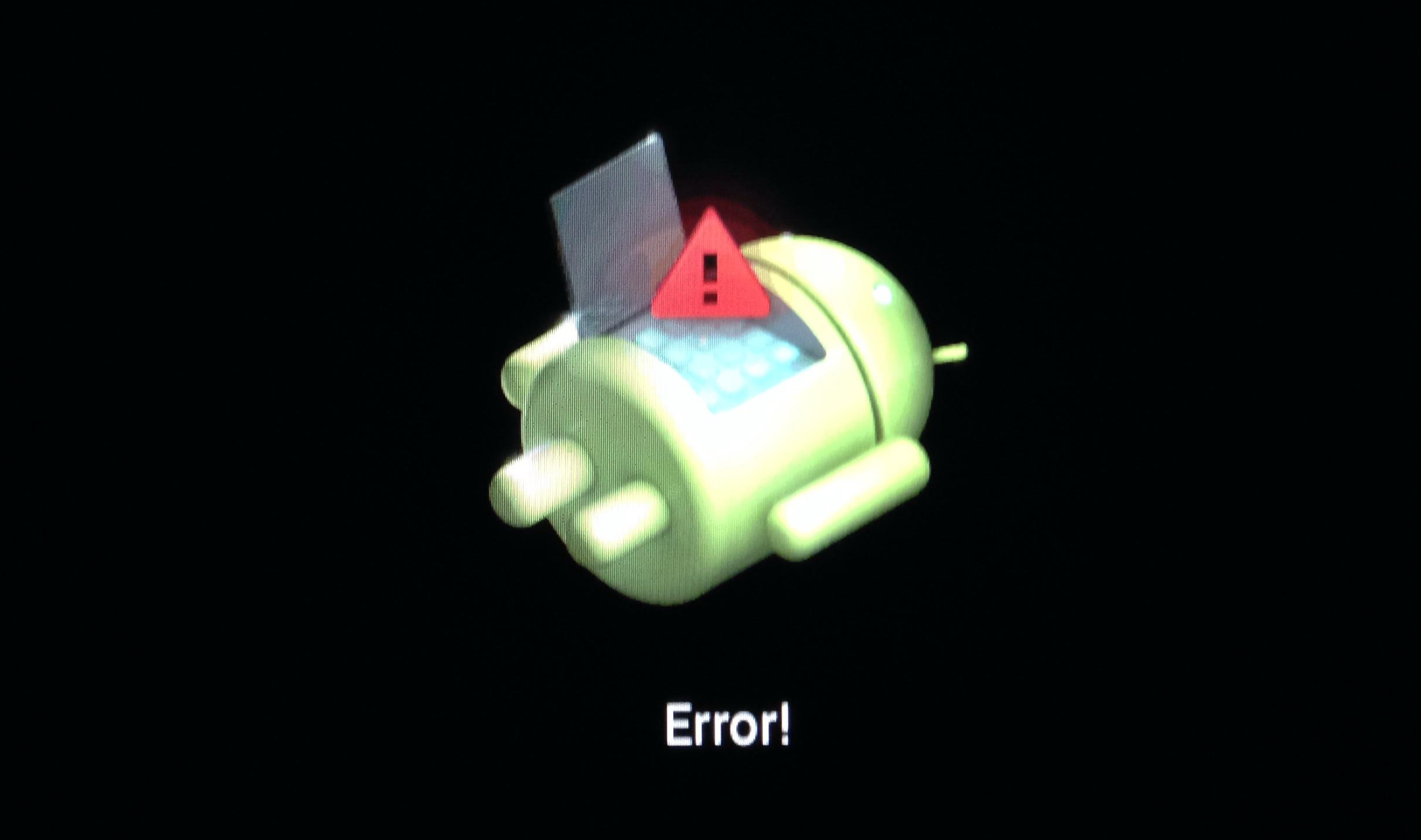
If you’re seeing the message “insufficient storage available” on your Android smartphone or tablet – and you do have space available – don’t panic, just follow these steps to clear your device’s cache and you’ll be downloading, updating and installing apps again in a matter of minutes. Here’s how to fix the “insufficient storage available” error message on Android.

Step 1 of 4:

If you’re getting the error message “insufficient storage available” when trying to update or install a downloaded app on your Android smartphone ortablet, don’t panic. Providing you’ve got space on your Android device, then you can fix this in just a few minutes. Here’s how to fix Android’s “insufficient storage available” error message.

slideshow image

Note: The error often pops up if you have moved large amounts of media from the Android device’s physical storage to a microSD card, and is caused by the cache not being properly erased.

The first thing you are going to need to do is download an app that is about 2MB in size – but can take up more space, depending on your device. So if you are having problems installing apps you’re going to need to delete something off your device’s internal storage (not the microSD card), other apps or media such as videos or photos are perfect – even if you have tons of space available.

Step 2 of 4:

Now that you have freed up some space, you need to go to the Google Play Store, search and download the free app called App Cache Cleaner – 1Tap Clean.

slideshow image

Step 3 of 4:

Well done. That’s the hard bit over and done with. All you need to do now is open the app and let it scan your Android device for your app’s stored cache. Once that is done you can either clear the caches indivually by clicking on the rubbish bin icon next to each, or delete all of the app’s caches by selected the Clear button at the bottom of the screen.

slideshow image

Step 4 of 4:

Once you have done this – and providing you actually have space on your Android smartphone or tablet –  you simply need to download your desired app or update and install it.

slideshow image

You will then have fixed Android “insufficient storage available” error message. Good work!

(pcadvisor.co.uk)
 

Phones Tags:android, app, Google, Google Play, google play store, play store, smartphone, tablet

Post navigation

Previous Post: How to watch US Netflix in the UK
Next Post: How to transfer photos from computer to iPhone the easy way: Transfer photos from your PC to your iPhone without wires using iCloud

Related Posts

Will the Google Pixel 9’s price drop when the Pixel 10 launches? Phones
Samsung Galaxy Z Fold7 / Flip7 foldable phone will be reported to be released on July 9th Phones
Beats Studio Buds Drop Back to $120 at Multiple Retailers (Save $30) Phones
gia-ban-xiaomi-pocophone-f1-1 Xiaomi Pocophone F1 256GB Review Phones
What is iPhone Mirroring? The new macOS Sequoia feature explained Phones
OPPO A5s Review OPPO A5s Review Phones

Copyright © 2026 GearOpen.com.

Powered by PressBook Grid Dark theme